The Compliance Reports area is a new addition to Platform Hub, designed to transform raw audit data into actionable insights.
While you can already access granular logs via the Audit tab or integrate with SIEM tools using the audit stream, Compliance Reports streamline reporting for Governance, Risk, and Compliance (GRC) teams.
Compliance Reports provide a centralized, audit-ready visibility into your software delivery lifecycle. They are designed to help Governance, Risk, and Compliance (GRC) teams quickly verify security controls and maintain a clear trail of deployment activity across your entire instance.
Compliance reports are currently in Alpha. If you encounter any issues, please contact our support team.
Our reports focus on answering two critical questions:
- Deployment Permissions: Which users are authorized to deploy specific projects, and to which environments?
- Deployment History: Who initiated deployments, and when did those events occur?
Deployment Permissions
The Deployment Permissions report provides a comprehensive map of access across your instance, allowing you to audit which users possess the authority to trigger deployments. By cross-referencing user roles with specific projects and environments, this report helps GRC teams validate that the principle of least privilege is being enforced and ensure that only authorized personnel can deploy.
Running the report
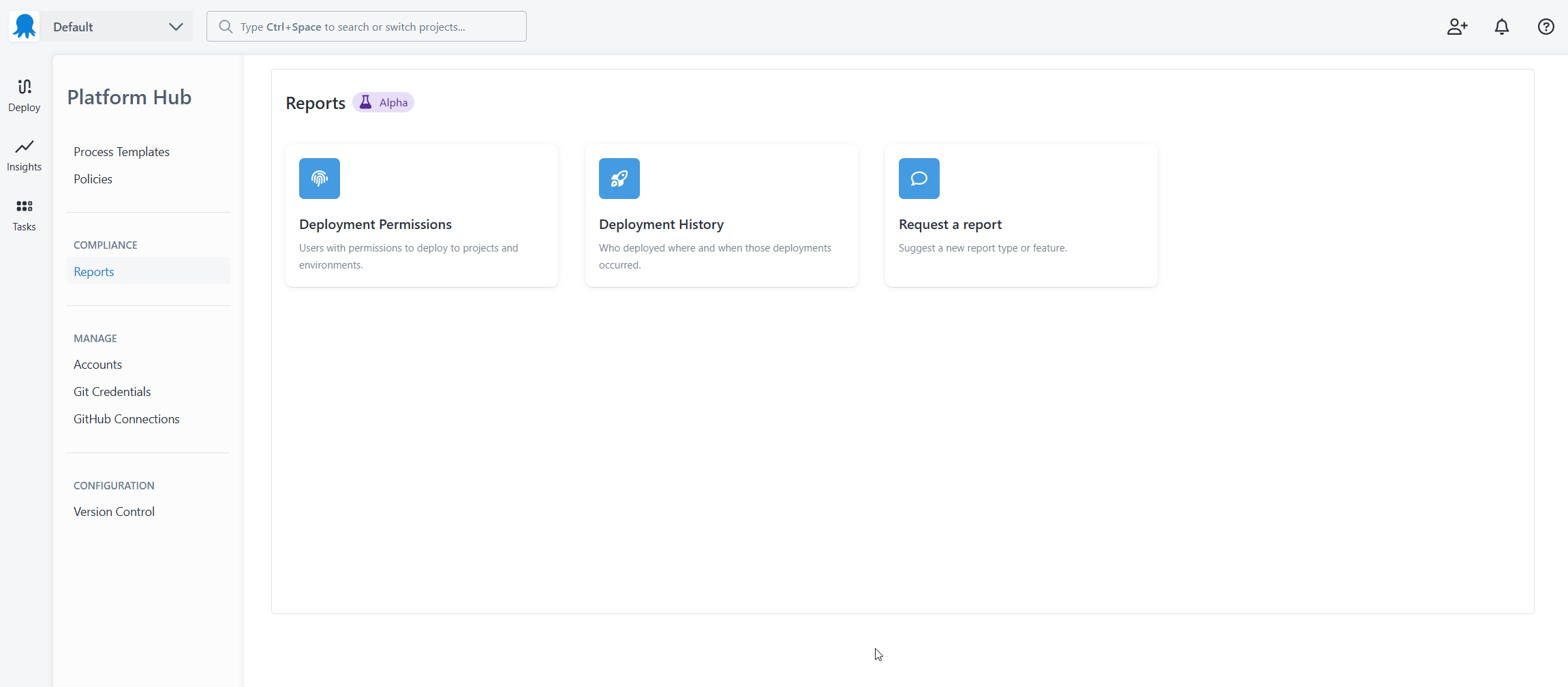
To run the Deployment Permissions report, navigate to Platform Hub -> Reports, and choose the Deployment Permissions card:
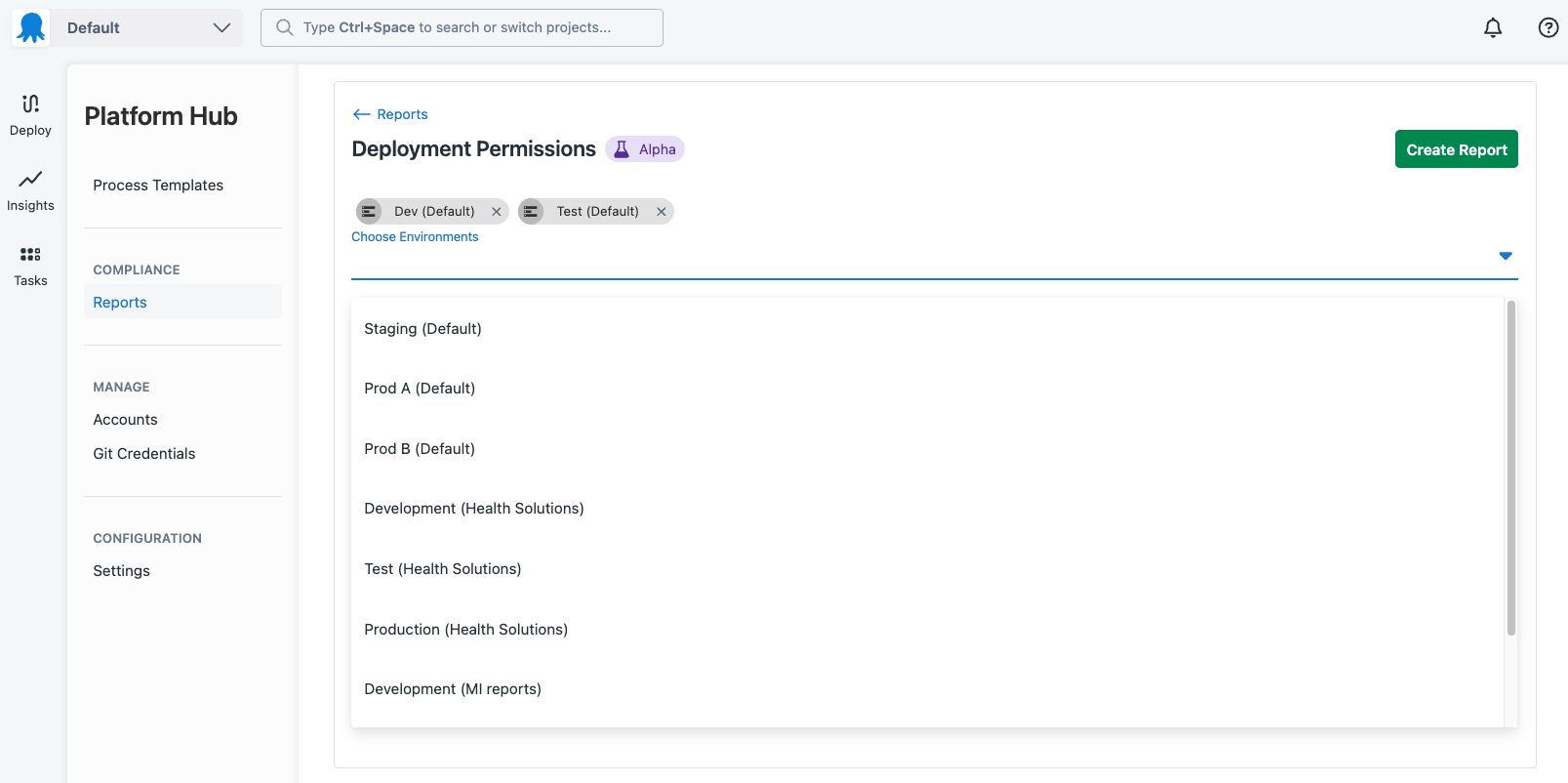
Select one or more environments from your Octopus Spaces to view Deployment permissions for:
Finally, click on the Create Report button and view the projects for the selected environments, and the users that can deploy to each project in that environment:
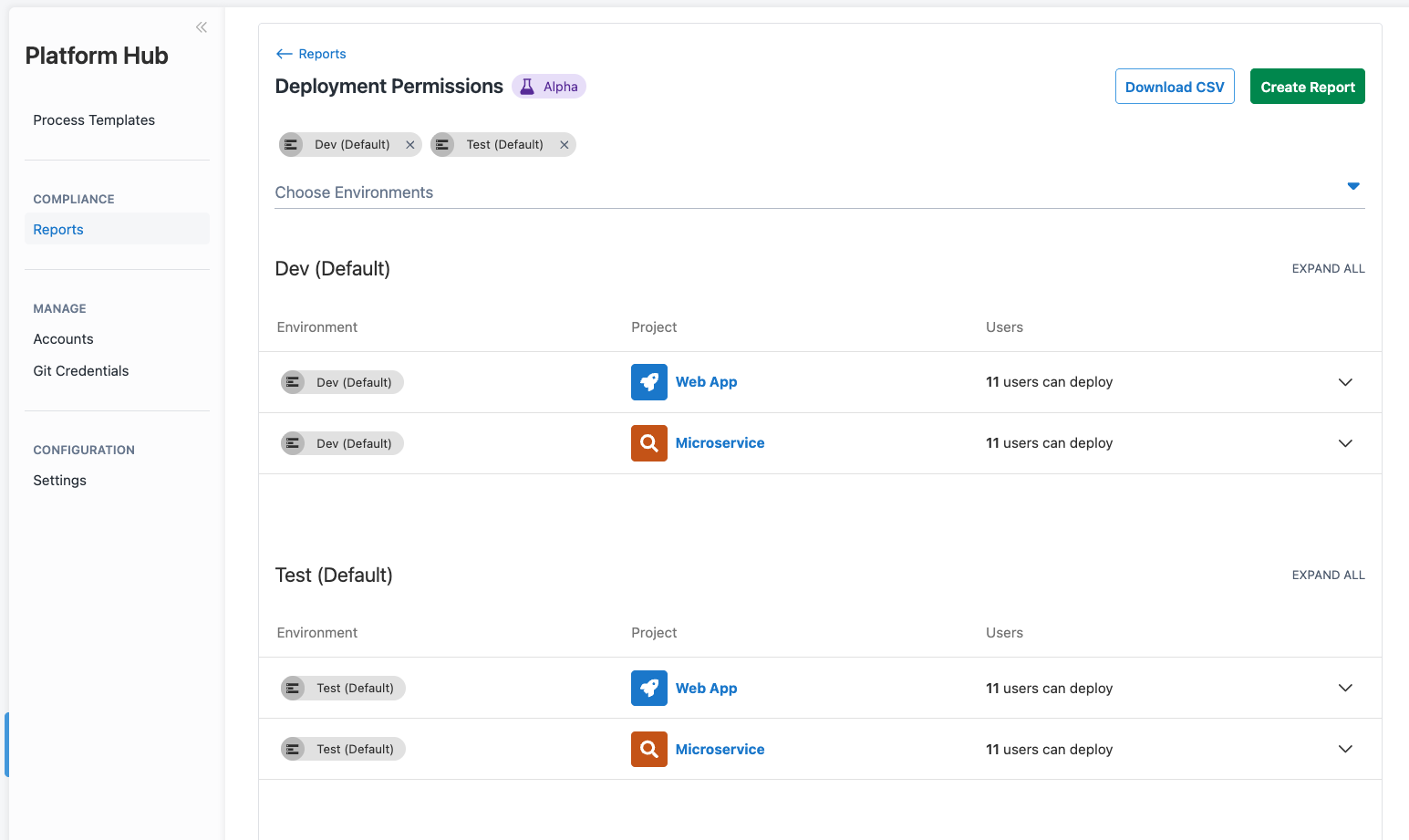
You can expand each project to see a list of the users that have permissions to deploy to that environment. You can also click the Download CSV button to generate a CSV file of the executed report.
Deployment History
The Deployment History report captures deployment activity across your instance, giving GRC teams a streamlined view of who deployed what, where, and when. It supports point-in-time compliance reviews and post-incident investigations by letting you filter deployments by date, space, environment, project, tenant, or deployer.
Running the Deployment History report
To run the Deployment History report, navigate to Platform Hub -> Reports, and choose the Deployment History card:
Select a date range from the dropdown — choose from Today, Last 7 Days, Last 30 Days, Last 90 Days, Last 365 Days, or Custom to specify exact dates.
To narrow the results further, click Show advanced filters and select any combination of Spaces, Environments, Projects, Tenants, and Deployers. Click Reset to clear the advanced filters.
The report lists each deployment with its status, project, version, space, environment, tenant, deployer, and the time it was deployed:
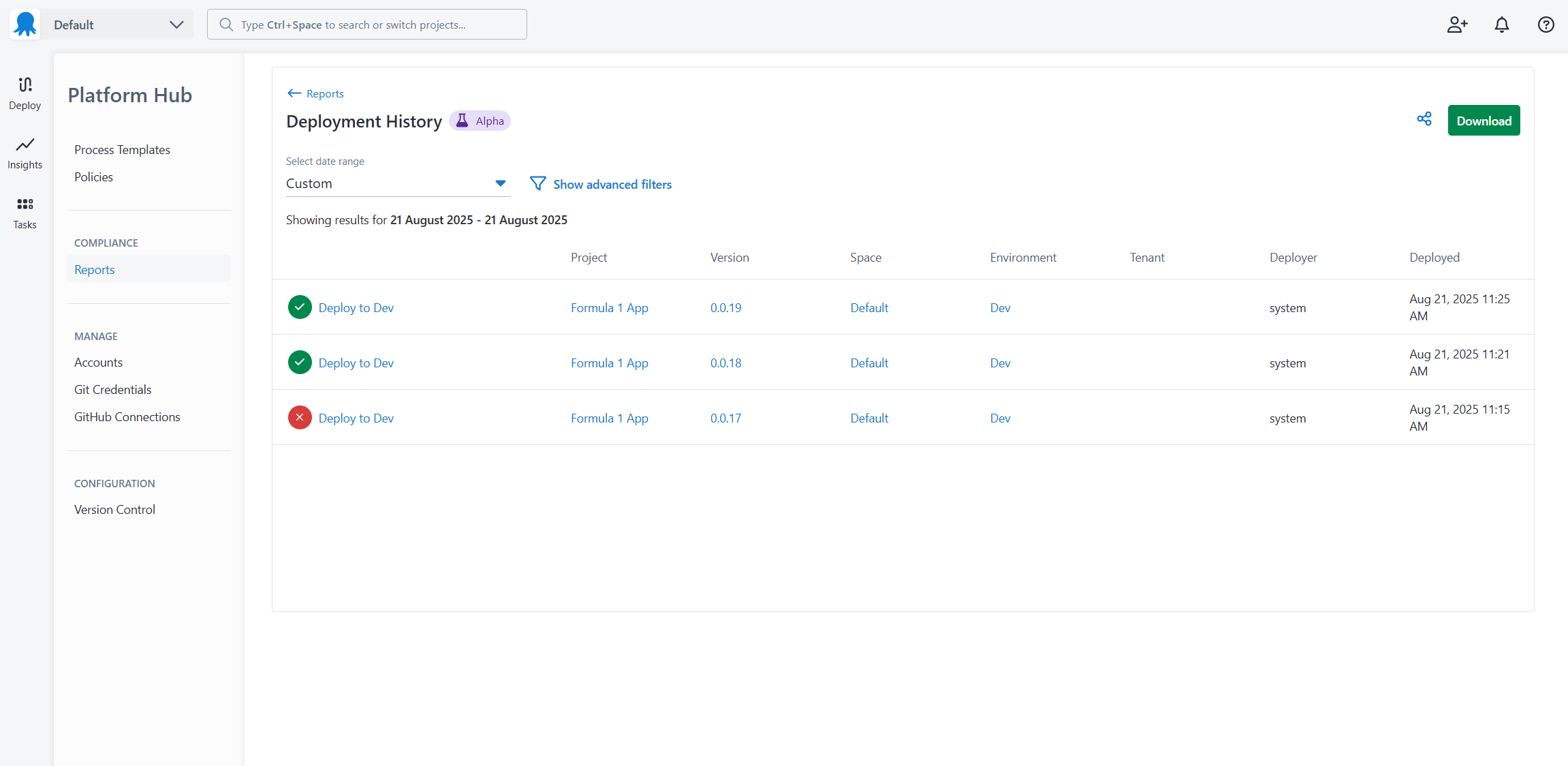
Click Download to generate a CSV file of the executed report, or use the Share icon to share the current view, including any applied filters.
Feedback
We’d love to get feedback on what reports you need to make compliance easier!
Help us continuously improve
Please let us know if you have any feedback about this page.
Page updated on Thursday, April 30, 2026