# Define and use variables
Octopus lets you define variables and scope them for use in different phases of your deployments. Variables allow you to have a consistent deployment process across your infrastructure without having to hard-code or manually update configuration settings that differ across environments, deployment targets, channels, or tenants.
## Add a variable
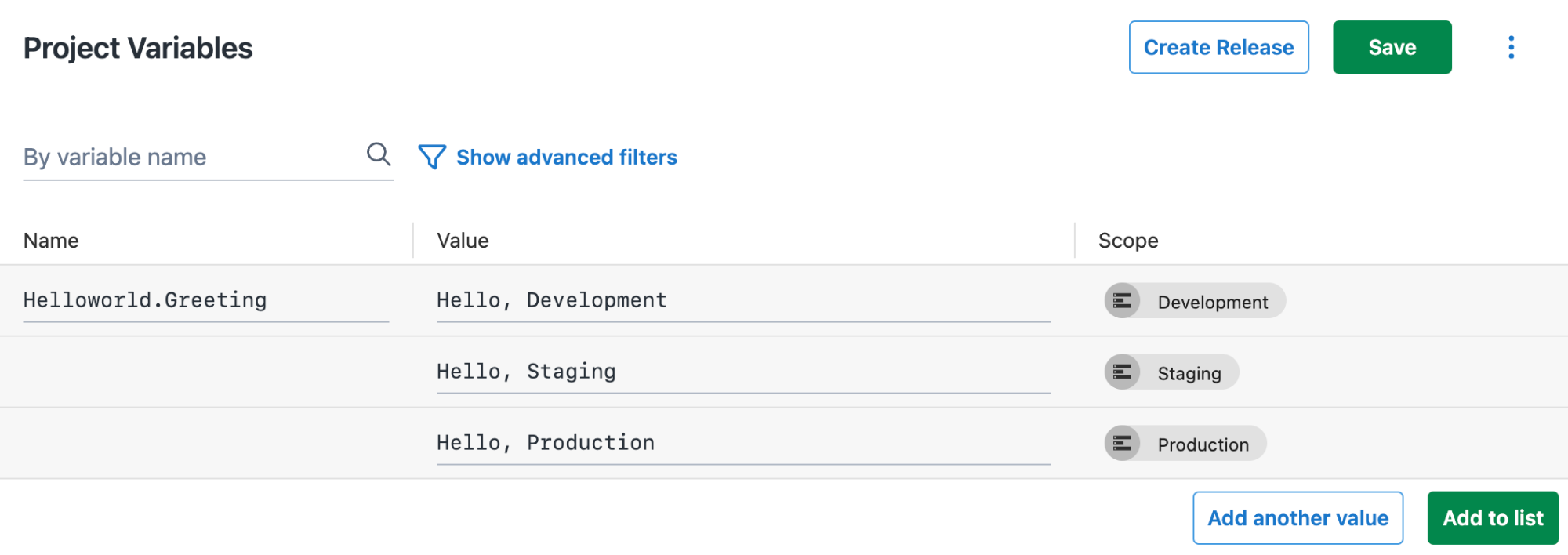
1. From the *Hello world* project you created earlier, click **Project Variables** in the left menu.
2. Click **Create Variables**.
3. Add `Helloworld.Greeting` in the **Name** column,
4. Add `Hello, Development` in the **Value** column,
5. Click the **Scope** column and select the `Development` environment.
6. Click **Add another value**.
7. Add `Hello, Staging` and scope it to the `Staging` environment.
8. Click **Add another value**.
9. Add `Hello, Production` and scope it to the `Production` environment.
10. Click **Save**.
:::figure
:::
## Update deployment process
Steps in the deployment process can reference variables.
1. Click **Process** in the left menu.
2. Select the previously created **Run a Script** step.
### Inline Source Code
3. Based on your selected language, copy the appropriate script from below.
4. Replace the script in the code editor with the new script.
PowerShell
```powershell
Write-Host $OctopusParameters["Helloworld.Greeting"]
```
Bash
```bash
greeting=$(get_octopusvariable "Helloworld.Greeting")
echo $greeting
```
:::div{.hint}
If you are using Octopus Cloud, Bash scripts require you to select the **Hosted Ubuntu** worker pool. The **Default Worker Pool** is running Windows and doesn't have Bash installed.
:::
5. Click **Save**
6. Click **Create Release**.
:::div{.hint}
A release snapshots everything about your project, including variables and the deployment process. You have to create a new release to see any changes.
:::
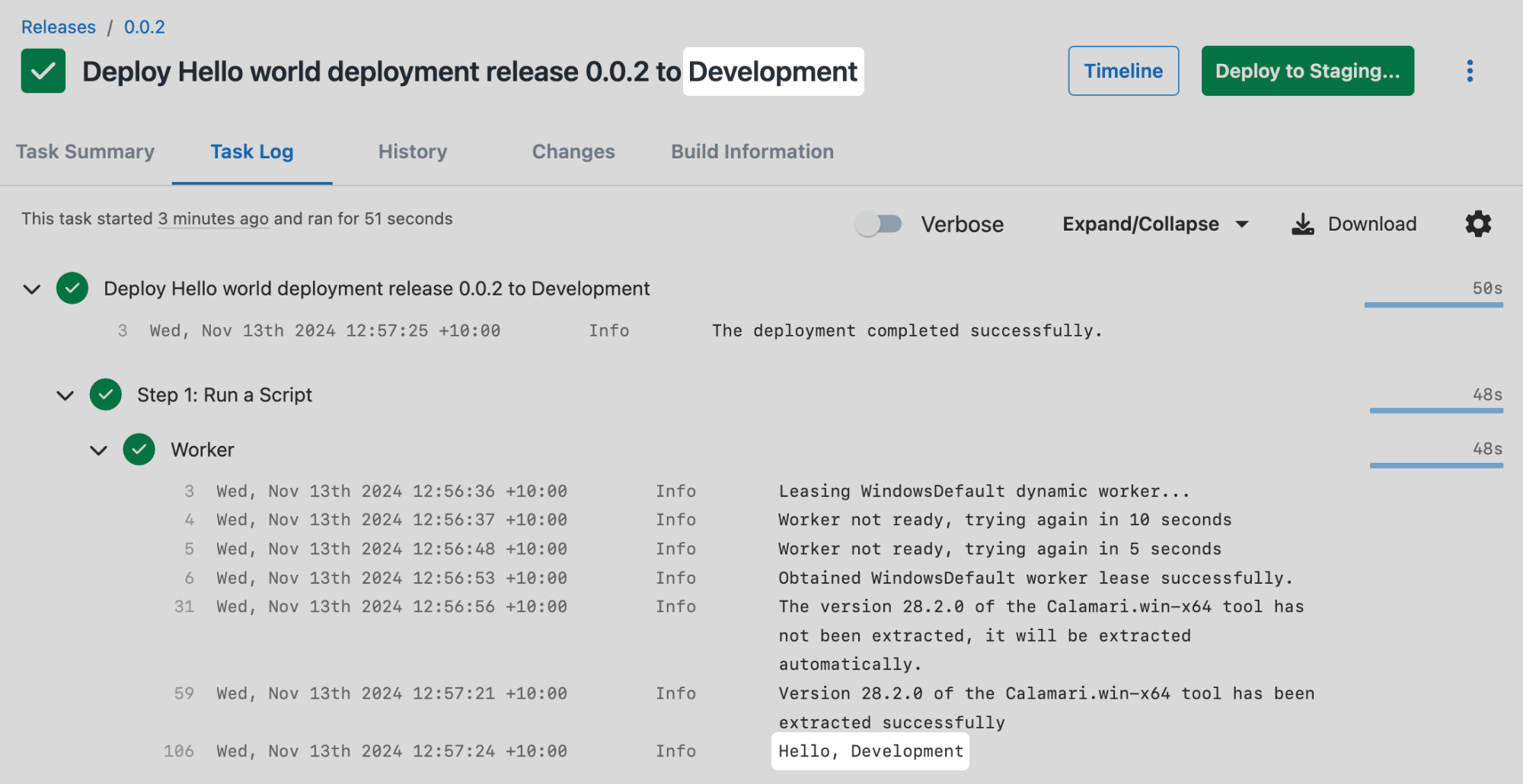
As you promote through the environments, you will see the greeting change.
:::figure
:::
Great job! Next, let's build on your deployment process and [add an approval process using manual interventions](/docs/getting-started/first-deployment/approvals-with-manual-interventions).
### All guides in this tutorial series
1. [First deployment](/docs/getting-started/first-deployment)
2. Define and use variables (this page)
3. [Approvals with manual interventions](/docs/getting-started/first-deployment/approvals-with-manual-interventions)
4. [Add deployment targets](/docs/getting-started/first-deployment/add-deployment-targets)
5. [Deploy a sample package](/docs/getting-started/first-deployment/deploy-a-package)
### Further reading for variables
- [Variables](/docs/projects/variables)
- [Deployments](/docs/deployments)
- [Patterns and Practices](/docs/deployments/patterns)